How to Build a Weight-Based Shipping Profile in your Woocommerce Store
How to Build a Weight-Based Shipping Profile in your Woocommerce Store
Woocommerce requires a few steps of additional configuration in order to get fully set up
Near the bottom of our Apliiq x Woocommerce installation guide, we have a section where we recommend additional settings to configure and plugins to install as unfortunately Woocommerce doesn't come 'fully cooked' when integrated.
Now, the first additional plugin we recommend you install is the Advanced Shipment Tracking (AST) plugin:
The concept of fulfillment doesn't exist natively within Woocommerce and, to borrow some Shopify parlance, you need to basically add a fulfillment location in your store to receive all of the "order has shipped" emails we push up to it.
How to Build a Weight-Based Shipping Profile in your Woocommerce Store
Secondly, the Apliiq Woocommerce integrated app isn't able to create any app shipping profiles when integrating the app with your Apliiq account. auto-installed during integratione recommend you download, install and then Build Out the Weight-Based Shipping plugin:
The way that Apliiq charges our partners for shipping is determined by 2 factors:
1) what country is the order shipping to?
2) how much does the order weigh?
There are different shipping rates for different countries and there are also different shipping rate weight tiers for each country. However, there is no inherent way in your Woocommerce store to charge your customers for shipping as Apliiq charges you for shipping. This is where the Weight-Based Shipping plugin comes in.
But one thing to note first is that for our shipping rate tables to map 1:1 in your store, you will need to at least temporarily make the following units of measure and metric changes to your store:
The weights you will be entering below are listed ONLY in OUNCES and having to do math on each and every shipping rate weight tier to convert could be Very Problematic and is not recommended.
Now, there are a few additional rubs here as you will need to build out different shipping zones for the plugin after installing it.
And then using the shipping rate charts for domestic and international orders, you will need to build out the conditional rules that will apply.
For example, here is a screenshot from the backend of my own Woocommerce store that already has the Weight-Based Shipping plugin installed:
Now, I am on my first sub-tab of 'shipping zones' in the Shipping tab of my Settings page. We recommend building out 5 shipping zones: United States, Canada, Australia, United Kingdom (GB) and a 5th 'catch-all' Rest of World shipping zone.
The process for building out shipping rates in Woo starts with the shipping zone and then you declare the type of shipping method to be applied (which is why you must download and install the Weight-Based shipping plugin first in order to have that option to select when building out your shipping profile).
Now, I've already clicked the "add shipping method" button and have selected Weight-Based Shipping so I am going to click on the 'edit' button to edit the rules and conditions for the USA shipping zone, but the sequence of moves does matter here:
In the below screenshot, I have only built out the first two USA shipping rate weight tiers but can always add more by clicking "add new":
Here I am after clicking "add new" and adding a new shipping rate weight tier to my United States shipping zone. Going sequentially, the next weight tier is for 3/4 of a pound to just under one pound.
Now, as mentioned above the numbers entered in the Order Weight Conditions field really read as any order whose weight is 'equal to or greater than 12.0 ounces (3/4 of a pound) but weighs no more than 15.9 ounces', or colloquially between 3/4 and 1 pound.
You simply then need to rinse and repeat this process for all of the shipping rate weight tiers you intend to build out.
I believe we have 30 separate shipping rate weight tiers and we Strongly recommend you build out as MUCH of EACH countries' shipping rates that you can and feel comfortable with.
That is to say, if you stop the US shipping profile at, let's 79.9 ounces (just under 5 pounds), then every cart whose combined weight is greater than or equal to 80.0 ounces will not be allowed to check out in your store as they will never have a shipping rate be quoted to them for their order.
I just had a video call with another Woocommerce partner yesterday and he asked for my thoughts on how to tackle the literally Insane number of rows in the CSV file at the bottom of the International Help Article as there are rates quoted for EVERY pound level individually and so each country has hundreds of rows and possibly hundreds of different shipping rate weight tiers to build out.
Talk about a headache.
My suggestion was this:
I recommend using the same 30 shipping rate weight tiers that we've broken the US rates down into for the various international shipping zones you build out.
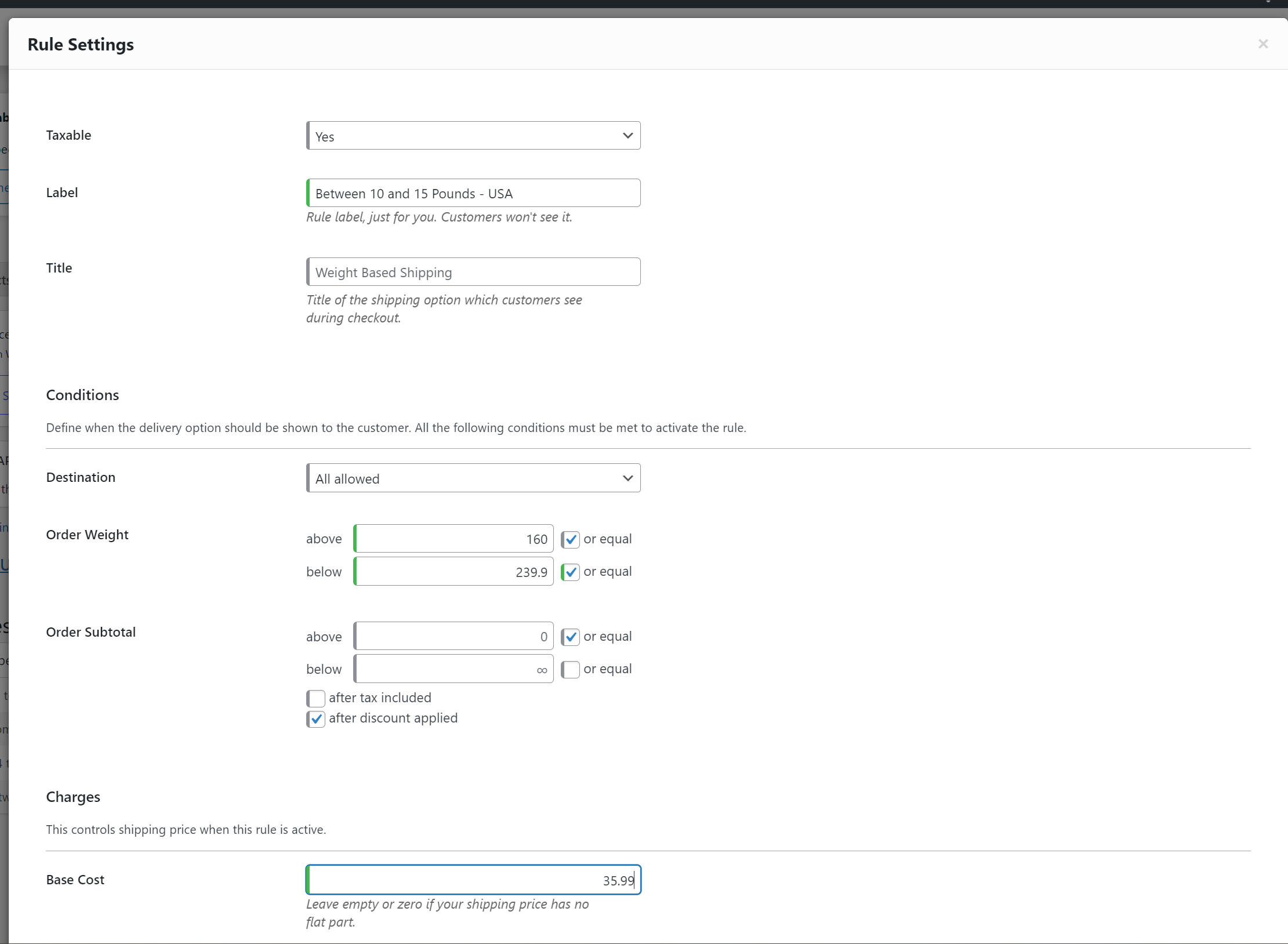
In case this suggestion is inscrutable, what I mean is simply, for the UK shipping rates, once we get past 10 lbs. (159.9 ounces), then I recommend the next tier be 239.9 oz. (which is 5 lbs heavier or 80 oz more) just like that is the next US shipping rate weight tier after 10 lbs.
Speaking of which, here is how I would built out that weight tier for the USA shipping zone - a weight greater than or equal to 10 lbs on the nose to just under 15 lbs) and if you check the US rate chart that amount is $35.99 (shipping rates will change over time):
Does that make sense?